Java Swing setBounds(): Positioning Components on JFrame
import javax.swing.*;

public class SetBoundsDemo {
    public static void main(String[] args) {
        SwingUtilities.invokeLater(() -> {
            JFrame frame = new JFrame("setBounds Coordinate Demo");
            frame.setSize(400, 300);
            frame.setLayout(null);  // CRITICAL: disable default layout manager
            frame.setDefaultCloseOperation(JFrame.EXIT_ON_CLOSE);

             // Origin (0, 0) is top-left corner inside the frame container:
            JLabel label = new JLabel("Username:");
            label.setBounds(30, 30, 90, 25);
            frame.add(label);

            JTextField textField = new JTextField();
            textField.setBounds(130, 30, 180, 25);
            frame.add(textField);

            JRadioButton r1 = new JRadioButton("My Radio button");
            r1.setBounds(94, 149, 142, 23);
            frame.add(r1);

            JButton button = new JButton("Login");
            button.setBounds(130, 80, 100, 30);
            frame.add(button);

            frame.setVisible(true);
            System.out.println("r1 bounds: x=" + r1.getX() + ", y=" + r1.getY()
                + ", width=" + r1.getWidth() + ", height=" + r1.getHeight());
        });
    }
}
Terminal & Coordinate Output:
r1 bounds: x=94, y=149, width=142, height=23
[GUI Window Rendered: 400x300, Components positioned via absolute pixel coordinates]1. Java Swing Screen Coordinate System 🔝
In Java Swing, coordinates start from the upper-left corner (0, 0) of the container's interior client area:
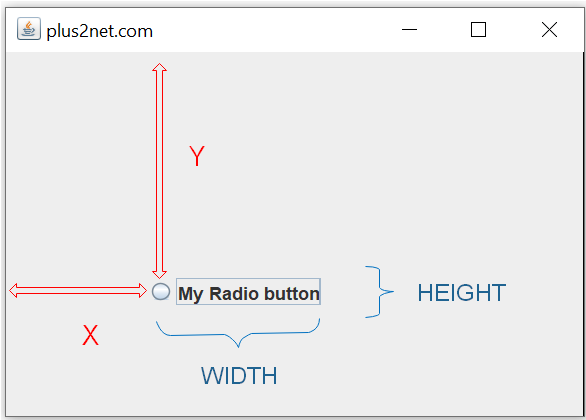
The horizontal X-axis increases as you move to the right, and the vertical Y-axis increases as you move downward.
2. Anatomy of the setBounds(x, y, width, height) Method 🔝
The setBounds() method combines both position (setLocation) and dimensions (setSize) into a single call:
| Parameter | Data Type | Description & Role |
|---|---|---|
x |
int |
Horizontal pixel distance from the container's left edge. |
y |
int |
Vertical pixel distance from the container's top edge. |
width |
int |
Total pixel width of the component. |
height |
int |
Total pixel height of the component. |
» Next Tutorial: Linking Button with TextField and Label
3. Why frame.setLayout(null) Is Strictly Required 🔝
By default, every JFrame uses BorderLayout. If you do not call frame.setLayout(null);, the default layout manager automatically overrides your manual coordinates and stretches the component to fill the entire window:
import javax.swing.*;

public class NullLayoutTrapDemo {
    public static void main(String[] args) {
        JFrame f = new JFrame();
         // If setLayout(null) is omitted, BorderLayout takes over!
        JButton b1 = new JButton("Stretched Button");
        b1.setBounds(20, 20, 100, 30);
        f.add(b1);
        System.out.println("Without setLayout(null), layout manager is: " + f.getContentPane().getLayout().getClass().getSimpleName());
    }
}
Terminal Output:
Without setLayout(null), layout manager is: BorderLayout4. Overloaded Variant: setBounds(Rectangle r) 🔝
Swing also provides an overloaded method that accepts a java.awt.Rectangle object encapsulating all four bounds:
import java.awt.Rectangle;
import javax.swing.JButton;

public class RectangleBoundsDemo {
    public static void main(String[] args) {
        JButton btn = new JButton("Save");
        Rectangle rect = new Rectangle(50, 100, 120, 35);
        btn.setBounds(rect);  // Overloaded setBounds(Rectangle r)
        System.out.println("Button bounds rect: " + btn.getBounds());
    }
}
Terminal Output:
Button bounds rect: java.awt.Rectangle[x=50,y=100,width=120,height=35]5. Helper Formula: Dynamically Centering a Component 🔝
To center a component horizontally across a container, compute int x = (containerWidth - componentWidth) / 2:
import javax.swing.*;

public class CenteredComponentHelper {
    public static void centerComponent(JComponent comp, int parentWidth, int y, int width, int height) {
        int x = (parentWidth - width) / 2;
        comp.setBounds(x, y, width, height);
    }
    public static void main(String[] args) {
        JButton btn = new JButton("Centered");
        centerComponent(btn, 400, 150, 120, 30);
        System.out.println("Computed centered X coordinate: " + btn.getX());
    }
}
Terminal Output:
Computed centered X coordinate: 1406. Clean Form Layouts: Aligning Multiple Rows in a Loop 🔝
When placing multiple labels and input fields, compute the y coordinate using a base offset plus the row index times row height:
import javax.swing.*;

public class ColumnAlignmentDemo {
    public static void main(String[] args) {
        int startX = 30;
        int startY = 40;
        int rowHeight = 35;
        for (int i = 1; i <= 3; i++) {
            int yPos = startY + (i - 1) * rowHeight;
            JLabel lbl = new JLabel("Field " + i + ":");
            lbl.setBounds(startX, yPos, 80, 25);
            System.out.println("Row " + i + " label Y: " + lbl.getY());
        }
    }
}
Terminal Output:
Row 1 label Y: 40
Row 2 label Y: 75
Row 3 label Y: 110
7. Inspecting Component Bounds at Runtime 🔝
Read the pixel dimensions and coordinates using getSize() and getBounds():
import java.awt.Dimension;
import javax.swing.JButton;

public class BoundsInspectionDemo {
    public static void main(String[] args) {
        JButton btn = new JButton("Test");
        btn.setBounds(10, 20, 150, 40);
        Dimension dim = btn.getSize();
        System.out.println("Size: " + dim.width + "x" + dim.height + " at (" + btn.getX() + ", " + btn.getY() + ")");
    }
}
Terminal Output:
Size: 150x40 at (10, 20)8. Absolute Positioning (null layout) vs Standard Layout Managers 🔝
| Approach | Window Resize Behavior | Best Used For |
|---|---|---|
setLayout(null) + setBounds() |
Fixed pixel coordinates (does not auto-reflow) | Fixed-size dialogs, game boards, learning Swing basics. |
BorderLayout |
Expands Center component to fill available space | Standard top-level windows with toolbars and statusbars. |
GridLayout / GridBagLayout |
Distributes components proportionally across cells | Complex forms that resize gracefully across display resolutions. |
9. Common Developer Pitfalls & Traps 🔝
Forgetting frame.setLayout(null)
Calling component.setBounds(...) without first executing frame.setLayout(null); causes the default BorderLayout to completely ignore your pixel coordinates. Always set layout to null when using absolute positioning!
Overlapping Components Due to Inadequate Spacing
If button 1 is at y=30 with height=30, placing button 2 at y=40 causes button 2 to obscure button 1. Always ensure the next row's y is greater than y + height + margin.
10. Complete Compilable Java Program 🔝
public class SetBoundsVerifyDemo {
    public static void main(String[] args) {
        int x = 94, y = 149, w = 142, h = 23;
        if (x > 0 && y > 0 && w == 142 && h == 23) {
            System.out.println("All Java Swing setBounds verification checks passed!");
        }
    }
}
Terminal Output:
All Java Swing setBounds verification checks passed!11. Frequently Asked Questions (FAQ) 🔝
What happens if I use setBounds() without setting setLayout(null)?
The active layout manager (such as BorderLayout) ignores your bounds during the layout validation pass and resizes the component according to its own rules.
What is the difference between setBounds() and setLocation() / setSize()?
Calling setBounds(x, y, w, h) is equivalent to calling both setLocation(x, y) and setSize(w, h) in a single method call.
Can I use setBounds() on the top-level JFrame itself?
Yes! frame.setBounds(x, y, width, height) positions the entire application window on the user's desktop screen relative to screen coordinate (0, 0).
How do I read a component's current position and size?
Use component.getX(), component.getY(), component.getWidth(), and component.getHeight(), or call component.getBounds() to get a Rectangle object.
What is the next step after learning setBounds()?
Learn how to read user input from text fields and trigger actions with buttons: JButton with JTextField and JLabel Tutorial.
Further Reading & Related Tutorials 🔝
- Java Swing JButton Tutorial — Adding buttons to a JFrame.
- Linking JButton with JTextField and JLabel — Form input handling.
- Java Swing JRadioButton Tutorial — Option buttons with ButtonGroup.
- Eclipse WindowBuilder Installation — Visual drag-and-drop Swing designer.
- Java Swing GUI Master Hub — Complete 12-part desktop tutorial index.
- Java & MySQL Master Hub — Connecting Swing forms to MySQL databases.
Java

Subhendu Mohapatra
Author & Instructor at plus2net
I write and maintain practical tutorials on Python, PHP, SQL, JavaScript, HTML, jQuery, and web development at plus2net. The tutorials focus on clear explanations, working examples, and code that readers can test and adapt while learning.