SQL PHP HTML ASP JavaScript articles and free scripts to download
HOME
PhotoShop Tutorial
Gradient Tool
Marquee Tool
Site Map
ASP Tutorial
JavaScript Tutorial
SQL Tutorial
PHP Tutorial
HTML Tutorial
Articles
Knowledge Management
Page Rank Check
Contact Us
Subscribe
Submit your email address and receive article and product notifications. Your email is safe with us.


Creating color fill by using gradient tool in PhotoShop

By using gradient tool we can create nice color fill with smooth color changing effects. Such images can be used as background image of tables, creating buttons, creating banners and in many other applications. We can select a portion of a image and apply gradient tool to it to create a change over of colors.

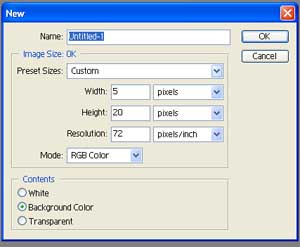
Let us start with a new file in Photo Shop and let us keep it in 72 pixel/inch and height 20 and width 5. 72 pixel is a good size to design images for web applications. This way we can keep the file size minimum and height and width to a range to manage the image to fill the heading tags we will create with this image. We are creating a small image. We will use this developed images to create nice heading for our design section.

Creating a new image for gradient tool in photoshop

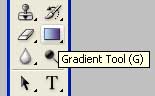
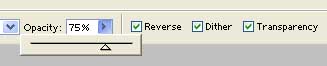
Let us select gradient tool from the toolbox. If you are not getting the gradient tool then right click on paint bucket tool and select the gradient tool. Keep the opacity to 75%


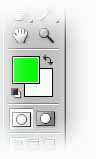
Hold the mouse left key at one end and drag the mouse to other end and then release the left mouse button . Before this if you can correctly selected the front end and backend colors, then the job is over.

Our Final image is here. We will save this as bg1.jpg for our header designs


Water Mark Image  | Gradient Tool  | Marquee tool  | Crop tool  | Move tool  | Magic tool  | Lasso tool  | Anchor Point tool  | Clone Stamp Tool  | Color Sampler Tool  | Custom shape tool  | Ellipse Tool  | Eye Dropper Tool  | Hand Tool  | Measure Tool  | Pen Tool  | Polygon Tool  | Rectangle Tool  | Rounded Rectangle Tool  | Zoom Tool  | Convert Point Tool  | Free form pen tool  | Delete Anchor point Tool  | Making an EyeBall  | Creating a 3DBall  | Removing Background of an Image  | Creating a Glassy Button  | Creating Impression Effect

Subscribe
Submit your email address and receive article and product notifications. Your email is safe with us.

Scripts
PHP
JavaScript