Web Form tag & HTML elements
<form method="POST" action="file_name.php">
     <!--- Other form components here -->
</form>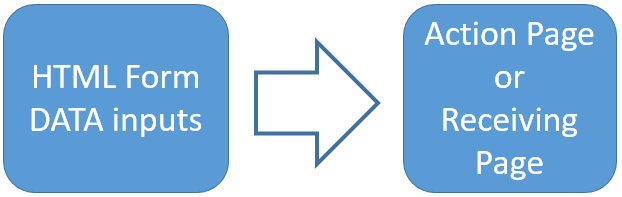
How to select a form component
Designing a form is based on the data format requirement. For example if you want the users to tell about their gender. Here the user will enter one out of the two choices available, so one period button is to be provided for the user to select. Same way one input text box is to be provided for entering name of the joining member. To select a city, user can be given a dropdown listbox showing name of the cities from which user can select.Based on different data input requirements we can keep different form components or input types.
Here we will understand different types of components used to collect data and their possible use. Before that let us try to understand the basic form structure or syntax.
Form tag
Our form area starts with <form ..> and ends with </form>. All our input fields are to be located between these two tags. These are two boundaries for the data entry. Here is the basic syntax for the form tag.Method attribute of the html form
The method parameter takes two values one is GET and other is POST. In GET method values are passed through the address bar or technically speaking they are passed as query string. We should not pass sensitive information this way as through browser history they can be retrieved. Post method submits the data without using the query string.You can read more on GET & POST methods here.
Action attribute
The action attribute takes the name of the file to which the data to be submitted for further processing. It can be a file in the same directory or a file in different directory. We have to give proper path information if they are in different directory. Forms can even submit data to a different web site by using the URL of the site and the particular page by entering the details in action attributes.For example form can submit data to https://www.mysite.com/my_file.php page for processing the entered data of the visitor.
If the action tag is left blank then the form will submit the data to itself( same file ). In this case we have to keep the form processing script in the same file.
HTML FORM basics with input fields submit button action page and target attributes
We can give a name to the form by declaring it through name tag. Like this name='f1'. It is easy to get the value of any entry by using name tag of the form like
var val=form.cat.options[form.cat.options.selectedIndex].value;| Elements | <tag> Description |
| Text field | Entering short text like name, email, address etc |
| Hidden Field | Hidden to the user with data to pass along with user entered data |
| Password Field | Input text entered will be masked to prevent others from seeing |
| TextArea | Large text like blog posting, comments, body of email form |
| Radio button | Selecting one of many option |
| Checkbox | Selecting one or more out of several options |
| Drop down list | Selecting option from a drop down list box |
| Optgroup | OPTGROUP for grouping options of a select box |
| Datalist | Selecting from options with auto complete |
| Button | To trigger event or run script by user |
| Image Button | Using images as button |
| Submit Button | Start sending the form elements data for processing |
| Resetting the form | Reset button to reset the form data to default values |
Buttons and Links
| Elements | <tag> Description |
| Link | Button as Hyperlink |
| Image Area | Linking different areas of the image to different pages |
| Link | Hyper link in HTML pages |
| Link window | How to Open link in a new window |
| Parent | Opening child window using JavaScript |
| Inside Link | Linking different areas of a page with back to top: Learn how to develop FAQ page |
| Image part | Using part area of image as hyper link |
| Mailto Email linking |
Applications and uses of html form elements
| Application | Uses of form element |
| Set Focus | Keeping the crusher at a text field to receive user data by default |
| Two Submit Button | Submitting same from data to two different action pages |
| Submit to new window | Form data to submit to a new window keeping the parent window as it is |
| Back to previous page | History button to take the user to previous pages |
| File Upload | HTML form tags to upload files from user computer to server or for attachment |
| Select options | Different form component types for user selection of options |

- Exercise on HTML Form
- Create a form for a member to enter following data.
First Name
Second Name
Gender ( Radio button )
Class ( select from a list of one to ten )
Languages they know ( checkbox ) Python, PHP, JavaScript
Details about educational background ( textarea )
The Label and input field must be in one line with matching alignment.
Colour of the font and background of the text should be different.
On Submit the form should send data to a different page. ( Form should be at Signup page signup.html and on submit the data should goto signupck.php page )
Integration of all html input components in to a form and submit user entered data
- Read details on how to collect form data in a PHP page here . Display all the data you receive from the signup form here .
- Create a link which points to the above page. On click of this link the page with above form will open and get filled with default value as passed on by the link.
Hint : This is similar to submitting the form by GET method.
Read how to collect data from query string and use it as textbox default data
Read Data formatting in Query string
This article is written by plus2net.com team.

| jaki shahrier kanak | 20-03-2010 |
| More eaxmples are needed | |