Text Input OnClick Event to Remove Default Data
The original plus2net example clears text when the input is clicked. That facility is preserved below, including the form Submit control. For new forms, a placeholder is usually better because it does not become the field value.
const input = document.getElementById('legacyUserId');
input.addEventListener('click', () => {
  input.value = '';
}, { once: true });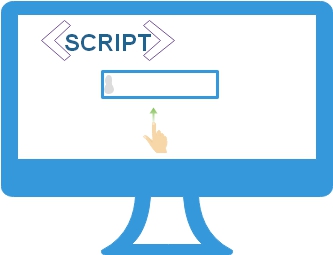
Legacy click-to-clear Pattern Top ↑
Older forms commonly placed an instruction such as “Enter your user id” directly in the input value, then removed it on click. The original facility remains useful for understanding click handlers, but clearing only once avoids deleting text if the user clicks the field again after typing.
Calling a Function from the Click Handler Top ↑
function makeBlank() {
  document.getElementById('legacyUserId').value = '';
}

const field = document.getElementById('legacyUserId');
field.addEventListener('click', makeBlank, { once: true });
The original code used a same-directory test.php receiver when demonstrating form submission. Keep a receiver page only when the form actually needs server processing.
Complete Working Source Top ↑
<form name="form1" method="post" action="test.php">
  <label for="legacyUserId">Enter User ID</label>
  <input type="text" name="type" id="legacyUserId" value="Enter your user id ">
  <input type="submit" value="Submit">
</form>
<script>
const input = document.getElementById('legacyUserId');
input.addEventListener('click', () => {
  input.value = '';
}, { once: true });
</script>
Preferred Pattern for New Forms Top ↑
<input type="text" name="user_id" placeholder="Enter your user id">A placeholder disappears naturally when the user enters a value and is not submitted as form data.
Event Handling onKeyPress Mouse event Textarea onClick event onKeyDown Mouse event

Subhendu Mohapatra
Author & Instructor at plus2net
I write and maintain practical tutorials on Python, PHP, SQL, JavaScript, HTML, jQuery, and web development at plus2net. The tutorials focus on clear explanations, working examples, and code that readers can test and adapt while learning.


Subscribe to our YouTube Channel here
