Pandas Horizontal Bar Charts: plot.barh() Formatting and Options
Use DataFrame.plot.barh() (or df.plot(kind='barh')) to compare quantities across categories when category names are long, or when presenting ranked leaderboards and survey items. Unlike vertical bar charts that require angled tick labels, horizontal bar charts display category descriptions along the vertical axis for effortless reading from left to right.
Create a basic horizontal bar chart 🔝
In a horizontal bar chart, the independent category names appear on the Y-axis, while the numerical values stretch along the horizontal X-axis. Calling df.plot.barh() plots columns horizontally:
import pandas as pd
import matplotlib.pyplot as plt

my_dict = {
    "NAME": ["Ravi", "Raju", "Alex", "Ron", "Geek", "Kim"],
    "MARK": [20, 30, 40, 30, 30, 30]
}
df = pd.DataFrame(data=my_dict)
print(df)

# Plot horizontal bars
df.plot.barh(x="NAME", y="MARK", title="Student Marks", figsize=(6, 3.5))
plt.tight_layout()
plt.show()
Expected console output:
   NAME  MARK
0  Ravi    20
1  Raju    30
2  Alex    40
3   Ron    30
4  Geek    30
5   Kim    30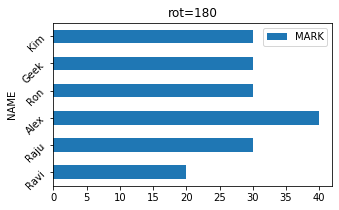
Sort and display leaderboards from highest to lowest 🔝
By default in Matplotlib, the first row of a DataFrame is placed at the bottom of the Y-axis (position 0). When building a ranked leaderboard where the top performer should appear at the very top of the chart, sort the DataFrame ascending with sort_values(ascending=True):
# Sort values ascending so the top score renders at the top
sorted_df = df.sort_values(by="MARK", ascending=True)
sorted_df.plot.barh(x="NAME", y="MARK", title="Ranked Student Marks", figsize=(6, 3.5), color="cornflowerblue")
plt.tight_layout()
plt.show()
Grouped and stacked horizontal bars 🔝
When comparing multiple numeric metrics across categories, pass a list of column names to y= for grouped bars, or pass stacked=True to stack contributions horizontally:
multi_df = pd.DataFrame({
    "Student": ["Ravi", "Raju", "Alex"],
    "Math": [35, 45, 50],
    "English": [40, 30, 45]
})

# Stacked horizontal bar chart
multi_df.plot.barh(x="Student", y=["Math", "English"], stacked=True, title="Total Marks by Subject", figsize=(6, 3))
plt.tight_layout()
plt.show()
Add value labels to bar ends with bar_label() 🔝
Use Matplotlib's ax.bar_label() method to annotate each bar with its exact value, eliminating the need for readers to estimate numbers from the X-axis grid:
ax = sorted_df.plot.barh(x="NAME", y="MARK", figsize=(6, 3.5), legend=False)
# Automatically add labels to the ends of the bars
ax.bar_label(ax.containers[0], padding=3)
ax.set_xlim(0, 50)
plt.tight_layout()
plt.show()
Configure dimensions, colors, and gridlines 🔝
Customise chart dimensions using figsize=(width, height), apply vertical gridlines with grid=True, and control color palettes with color=.
df.plot.barh(x="NAME", y="MARK", color="teal", grid=True, figsize=(6, 3), title="Marks with Gridlines")
plt.tight_layout()
plt.show()
Save charts to file using savefig() 🔝
Export your finished horizontal bar chart to a PNG or PDF file before closing the figure buffer:
ax = df.plot.barh(x="NAME", y="MARK", title="Student Performance")
plt.tight_layout()
plt.savefig("student_barh_chart.png", dpi=300)
print("Saved chart as student_barh_chart.png")
plt.close()
Practical workflow: quarterly sales team performance ranking 🔝
Here is an end-to-end practical workflow: compare Q1 vs Q2 performance for sales representatives, calculate total revenue, sort the leaderboard, and validate results with Python assertions.
import pandas as pd
import matplotlib.pyplot as plt

sales_team = pd.DataFrame({
    "Representative": ["Alice", "Bob", "Charlie", "Diana", "Evan"],
    "Q1_Sales": [25000, 18000, 32000, 29000, 15000],
    "Q2_Sales": [27000, 21000, 34000, 31000, 19000]
})

# Assert dataset integrity
assert len(sales_team) == 5
assert sales_team["Q1_Sales"].sum() == 119000
assert sales_team["Q2_Sales"].sum() == 132000

sales_team["Total_Sales"] = sales_team["Q1_Sales"] + sales_team["Q2_Sales"]
ranked = sales_team.sort_values(by="Total_Sales", ascending=True)

print("Top Sales Rep:", ranked.iloc[-1]["Representative"])
print("Top Total Sales:", ranked.iloc[-1]["Total_Sales"])

ax = ranked.plot.barh(
    x="Representative",
    y=["Q1_Sales", "Q2_Sales"],
    stacked=True,
    figsize=(7, 4),
    title="H1 Sales Leaderboard by Representative"
)
ax.set_xlabel("Revenue ($)")
plt.tight_layout()
plt.show()
Expected console output:
Top Sales Rep: Charlie
Top Total Sales: 66000
Exercise: warehouse inventory stock levels 🔝
Create a DataFrame with 5 products and available inventory counts: Wireless Mouse (120), Mechanical Keyboard (45), USB-C Dock (80), Webcam 4K (35), and Noise-Cancelling Headphones (60). Sort the items in ascending order so the most stocked item appears at the top of the horizontal bar chart, title the chart "Warehouse Stock Distribution", and calculate the total inventory unit count.
Exercise solution 🔝
import pandas as pd
import matplotlib.pyplot as plt

inventory = pd.DataFrame({
    "Product": ["Wireless Mouse", "Mechanical Keyboard", "USB-C Dock", "Webcam 4K", "Noise-Cancelling Headphones"],
    "Stock": [120, 45, 80, 35, 60]
})

total_units = inventory["Stock"].sum()
assert total_units == 340
print("Total Stock Units:", total_units)

sorted_inv = inventory.sort_values(by="Stock", ascending=True)
ax = sorted_inv.plot.barh(
    x="Product",
    y="Stock",
    title="Warehouse Stock Distribution",
    figsize=(7, 3.5),
    legend=False,
    color="steelblue"
)
ax.bar_label(ax.containers[0], padding=3)
ax.set_xlim(0, 140)
plt.tight_layout()
plt.show()
Expected console output:
Total Stock Units: 340Practice in Google Colab 🔝
Open in Google Colab View on GitHub
Run the horizontal bar chart examples interactively, test leaderboard sorting, experiment with stacked horizontal configurations, and verify the practice exercise directly in Google Colab. All sample datasets are embedded directly in the notebook.
Further Reading & Related Tutorials 🔝
Continue expanding your Pandas data visualization toolkit:
- Pandas Plot Overview — The full guide to Pandas charting formats and settings.
- Pandas Vertical Bar Charts — Compare discrete categories with vertical bar columns.
- Pandas Line Charts — Compare trends and continuous measurements over time.
- Pandas Area Plots — Track cumulative volume and stacked proportions over time.
- Pandas Scatter Plots — Visualise correlation and spread across two numerical variables.
- Pandas Plotting Exercises — Hands-on problem sets to test your visualization skills.
- SQL ORDER BY Queries — Sort database records before loading them into Pandas leaderboards.
- Pandas Section Home — Master index of all Pandas pillars, tutorials, and workflows.
Reference: Pandas DataFrame.plot.barh official documentation.

Subhendu Mohapatra
Author & Instructor at plus2net
I write and maintain practical tutorials on Python, PHP, SQL, JavaScript, HTML, jQuery, and web development at plus2net. The tutorials focus on clear explanations, working examples, and code that readers can test and adapt while learning.


Subscribe to our YouTube Channel here

 Python Video Tutorials