Tkinter ttkbootstrap Label Widget Tutorial
The ttkbootstrap Label widget extends standard Tkinter text labels by offering theme-aware color palettes (`bootstyle`), custom typography styling, and dynamic variable binding.
Tutorial Breakdown:
- Part I: Basic Label Setup & Bootstyle Colors (PRIMARY, SUCCESS, WARNING, DANGER)
- Part II: Live Dynamic Theme Switcher (Flatly, Superhero, Cosmo, Darkly)
- Part III: SQLite Database Integration (Fetching & Displaying Status Text via SQLAlchemy)
- Part IV: Connecting to MySQL using SQLAlchemy
Part I: Basic Label Setup & Bootstyle Colors
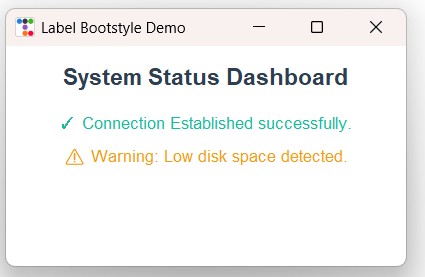 We created text labels and used Pack layout manager.
Labels support bootstyle=SUCCESS and bootstyle=DANGER for semantic color coding.
import ttkbootstrap as ttk
from ttkbootstrap.constants import *

app = ttk.Window(title="Label Bootstyle Demo", themename="flatly")
app.geometry("400x220")

# Labels with different bootstyle color variations
lbl_title = ttk.Label(app, text="System Status Dashboard", font=("Helvetica", 14, "bold"), bootstyle=PRIMARY)
lbl_title.pack(padx=20, pady=15)

lbl_success = ttk.Label(app, text="✓ Connection Established successfully.", font=("Helvetica", 10), bootstyle=SUCCESS)
lbl_success.pack(padx=20, pady=5)

lbl_warning = ttk.Label(app, text="⚠ Warning: Low disk space detected.", font=("Helvetica", 10), bootstyle=WARNING)
lbl_warning.pack(padx=20, pady=5)

app.mainloop()
Practical Overview
The ttkbootstrap Label component displays static or dynamic text strings. By utilizing bootstyle attributes (such as PRIMARY, SUCCESS, WARNING, or DANGER), the text color automatically coordinates with your active application theme.
Part II: Live Dynamic Theme Switcher
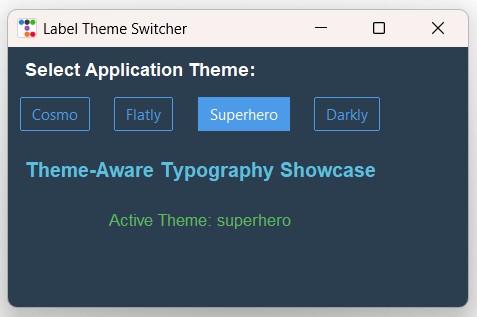 We used StringVar to track themes and used Grid layout manager.
Selecting theme radio buttons applies runtime updates across label styles via app.style.theme_use().
import ttkbootstrap as ttk
from ttkbootstrap.constants import *

def change_theme():
    selected_theme = theme_var.get()
    app.style.theme_use(selected_theme)
    label_info.config(text=f"Active Theme: {selected_theme}")

app = ttk.Window(title="Label Theme Switcher", themename="superhero")
app.geometry("460x260")

theme_var = ttk.StringVar(value="superhero")
themes = ["cosmo", "flatly", "superhero", "darkly"]

lbl_title = ttk.Label(app, text="Select Application Theme:", font=("Helvetica", 11, "bold"))
lbl_title.grid(row=0, column=0, columnspan=4, padx=15, pady=10, sticky="w")

for idx, t_name in enumerate(themes):
    rb = ttk.Radiobutton(
        app,
        text=t_name.capitalize(),
        value=t_name,
        variable=theme_var,
        command=change_theme,
        bootstyle="outline-toolbutton"
    )
    rb.grid(row=1, column=idx, padx=5, pady=5)

lbl_display = ttk.Label(app, text="Theme-Aware Typography Showcase", font=("Helvetica", 12, "bold"), bootstyle=INFO)
lbl_display.grid(row=2, column=0, columnspan=4, padx=15, pady=20)

label_info = ttk.Label(app, text="Active Theme: superhero", bootstyle=SUCCESS, font=("Helvetica", 10))
label_info.grid(row=3, column=0, columnspan=4, padx=15, pady=5)

app.mainloop()
Part III: SQLite Database Integration (Fetching Status Messages)
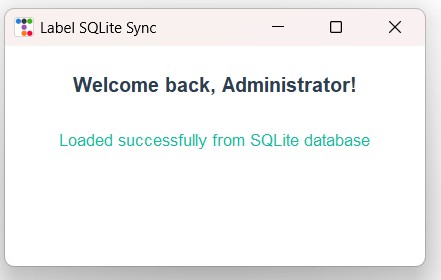 We used SQLite database and SQLAlchemy to query application status texts.
Upon startup, labels load their text strings directly from SQLite records.
1️⃣ Creating SQLite Table & Inserting Message Data
from sqlalchemy import create_engine, text

# Use raw strings r"..." to prevent Unicode escape errors in Windows paths
DATABASE_URL = r"sqlite:///I:\My Drive\testing3\ttkbootstrap\messages_db.db"
engine = create_engine(DATABASE_URL, echo=False)

with engine.connect() as connection:
    connection.execute(text("CREATE TABLE IF NOT EXISTS messages (id INTEGER PRIMARY KEY, msg_key TEXT UNIQUE NOT NULL, msg_text TEXT NOT NULL)"))

    result = connection.execute(text("SELECT COUNT(*) FROM messages WHERE msg_key='welcome_banner'"))
    if result.scalar() == 0:
        connection.execute(text("INSERT INTO messages (msg_key, msg_text) VALUES ('welcome_banner', 'Welcome back, Administrator!')"))
        connection.commit()

print("Messages database initial setup completed.")
2️⃣ Dynamic GUI Rendering Label Text from SQLite via SQLAlchemy
import ttkbootstrap as ttk
from ttkbootstrap.constants import *
from sqlalchemy import create_engine, text

DATABASE_URL = r"sqlite:///I:\My Drive\testing3\ttkbootstrap\messages_db.db"
engine = create_engine(DATABASE_URL, echo=False)
connection = engine.connect()

def get_stored_message():
    res = connection.execute(text("SELECT msg_text FROM messages WHERE msg_key='welcome_banner'"))
    row = res.fetchone()
    return row[0] if row else "Default Welcome"

root = ttk.Window(title="Label SQLite Sync", themename="flatly")
root.geometry("420x220")

banner_text = get_stored_message()

lbl_banner = ttk.Label(root, text=banner_text, font=("Helvetica", 12, "bold"), bootstyle=PRIMARY)
lbl_banner.pack(padx=20, pady=25)

lbl_db_status = ttk.Label(root, text="Loaded successfully from SQLite database", bootstyle=SUCCESS, font=("Helvetica", 10))
lbl_db_status.pack(pady=5)

root.mainloop()
connection.close()
Part IV: Connecting to MySQL using SQLAlchemy
To connect your Label database application to a centralized MySQL database server, update the SQLAlchemy connection string:
# SQLite Connection (Commented Out)
# DATABASE_URL = r"sqlite:///I:\My Drive\testing3\ttkbootstrap\messages_db.db"

# MySQL Connection string using PyMySQL
DATABASE_URL = "mysql+pymysql://username:password@localhost/student_db"

engine = create_engine(DATABASE_URL, echo=False)
Common Errors & Troubleshooting
| Issue / Error | Cause | Recommended Solution |
|---|---|---|
| Label text wraps or truncates unexpectedly | Label width is not explicitly specified or container bounds restrict expansion. | Set wraplength parameter (e.g., wraplength=300) to enable multi-line auto-wrapping. |
| Bootstyle color fails to apply | Typo in bootstyle keyword or unsupported string name. | Ensure bootstyle matches valid constants (e.g., PRIMARY, SUCCESS, WARNING, DANGER, INFO). |
Frequently Asked Questions
ttk.Label(root, textvariable=my_string_var).
image parameter, and use compound to position text relative to the image.

Subhendu Mohapatra
Author & Instructor at plus2net
I write and maintain practical tutorials on Python, PHP, SQL, JavaScript, HTML, jQuery, and web development at plus2net. The tutorials focus on clear explanations, working examples, and code that readers can test and adapt while learning.


Subscribe to our YouTube Channel here

 Python Video Tutorials