Tkinter ttkbootstrap Notebook Widget Tutorial
The ttkbootstrap Notebook widget organizes dense graphical interfaces into multi-tabbed layout containers. Each tab acts as a separate parent frame for holding inputs, cards, or tables without cluttering the screen space.
Tutorial Breakdown:
- Part I: Basic Multi-Tab Notebook Layout (`pack` Manager)
- Part II: Dynamic Tab Addition and Removal (`grid` Manager)
- Part III: Cross-Linking to ttkbootstrap Combobox Extension
Part I: Creating a Basic Multi-Tab Notebook Layout
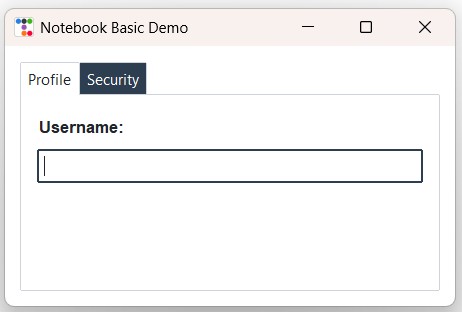 We used StringVar to manage inputs inside frames and used Pack layout manager.
Label and Entry widgets are assigned directly to tab frames.
import ttkbootstrap as ttk
from ttkbootstrap.constants import *

app = ttk.Window(title="Notebook Basic Demo", themename="flatly")
app.geometry("450x260")

# Create Notebook container widget
notebook = ttk.Notebook(app, bootstyle=PRIMARY)
notebook.pack(padx=15, pady=15, fill=BOTH, expand=True)

# Tab 1: Profile Settings
tab1 = ttk.Frame(notebook, padding=15)
notebook.add(tab1, text="Profile")

lbl_user = ttk.Label(tab1, text="Username:", font=("Helvetica", 10, "bold"))
lbl_user.pack(anchor=W, pady=5)
ent_user = ttk.Entry(tab1, bootstyle=PRIMARY)
ent_user.pack(fill=X, pady=5)

# Tab 2: Security Preferences
tab2 = ttk.Frame(notebook, padding=15)
notebook.add(tab2, text="Security")

chk_pass = ttk.Checkbutton(tab2, text="Enable Two-Factor Authentication", bootstyle="round-toggle")
chk_pass.pack(anchor=W, pady=15)

app.mainloop()
Practical Overview
The ttkbootstrap Notebook widget manages multiple child Frame instances organized under selectable visual tab headers. Using notebook.add(frame, text="Tab Name"), each tab isolates form controls, settings, or datasets into independent vertical layers, keeping complex desktop application interfaces clean and organized.
Part II: Dynamic Tab Addition & Removal
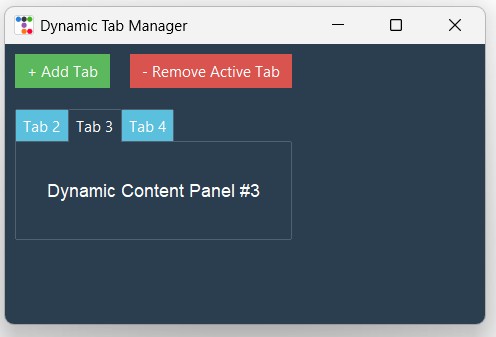 We used Grid layout manager to structure control buttons alongside the tab container.
Methods notebook.add() and notebook.forget() dynamically modify tabs.
import ttkbootstrap as ttk
from ttkbootstrap.constants import *

tab_count = 1

def add_tab():
    global tab_count
    tab_count += 1
    new_frame = ttk.Frame(notebook, padding=15)
    lbl = ttk.Label(new_frame, text=f"Dynamic Content Panel #{tab_count}", font=("Helvetica", 11))
    lbl.pack(pady=20)
    notebook.add(new_frame, text=f"Tab {tab_count}")

def remove_tab():
    if len(notebook.tabs()) > 1:
        notebook.forget(notebook.select())

app = ttk.Window(title="Dynamic Tab Manager", themename="superhero")
app.geometry("480x280")

btn_add = ttk.Button(app, text="+ Add Tab", command=add_tab, bootstyle=SUCCESS)
btn_add.grid(row=0, column=0, padx=10, pady=10, sticky="w")

btn_remove = ttk.Button(app, text="- Remove Active Tab", command=remove_tab, bootstyle=DANGER)
btn_remove.grid(row=0, column=1, padx=10, pady=10, sticky="w")

notebook = ttk.Notebook(app, bootstyle=INFO)
notebook.grid(row=1, column=0, columnspan=2, padx=10, pady=10, sticky="nsew")

# Initial Tab
initial_frame = ttk.Frame(notebook, padding=15)
lbl_init = ttk.Label(initial_frame, text="Default Initial Tab Content")
lbl_init.pack(pady=20)
notebook.add(initial_frame, text="Tab 1")

app.mainloop()
Part III: Dynamic Runtime Theme Switcher
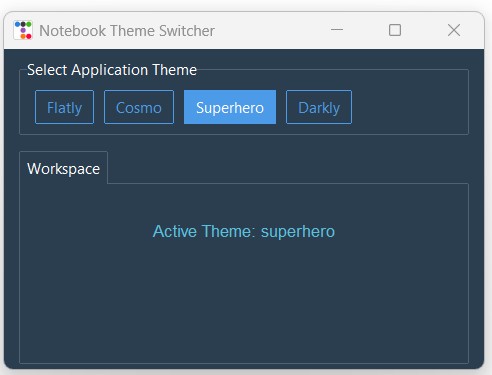 We used StringVar to track selected themes and applied them across the active window layout.
Label label_msg displays the active notebook and application theme updated via app.style.theme_use().
ttkbootstrap Radiobutton is used with bootstyle="outline-toolbutton" for user to select the theme.
import ttkbootstrap as ttk
from ttkbootstrap.constants import *

def on_theme_change():
    selected_theme = theme_var.get()
    app.style.theme_use(selected_theme)
    label_msg.config(text=f"Active Theme: {selected_theme}")

app = ttk.Window(title="Notebook Theme Switcher", themename="flatly")
app.geometry("480x320")

theme_var = ttk.StringVar(value="flatly")
themes = ["flatly", "cosmo", "superhero", "darkly"]

# Theme selection panel using Radiobuttons
frame_themes = ttk.LabelFrame(app, text="Select Application Theme", padding=10)
frame_themes.pack(fill=X, padx=15, pady=10)

for t_name in themes:
    rb = ttk.Radiobutton(
        frame_themes,
        text=t_name.capitalize(),
        value=t_name,
        variable=theme_var,
        command=on_theme_change,
        bootstyle="outline-toolbutton"
    )
    rb.pack(side=LEFT, padx=5)

# Notebook Container
notebook = ttk.Notebook(app, bootstyle=PRIMARY)
notebook.pack(fill=BOTH, expand=True, padx=15, pady=5)

tab1 = ttk.Frame(notebook, padding=15)
notebook.add(tab1, text="Workspace")

label_msg = ttk.Label(tab1, text="Active Theme: flatly", font=("Helvetica", 10), bootstyle=INFO)
label_msg.pack(pady=20)

app.mainloop()ttkbootstrap Combobox & Database Integration
Extend standard Tkinter dropdowns using ttkbootstrap. Learn how to apply color-coded bootstyle themes, build a live runtime theme switcher, and synchronize selected options with SQLite or MySQL databases using SQLAlchemy.
Common Errors & Troubleshooting
| Issue / Error | Cause | Recommended Solution |
|---|---|---|
| Notebook tabs overlap window edge | Parent frame or notebook missing `sticky="nsew"` or `expand=True` flags. | Configure parent grid rows/columns with `weight=1` or set `fill=BOTH, expand=True` on pack. |
| TclError: bad tab ID | Attempting to access or delete a tab index that does not exist. | Verify tab length using `len(notebook.tabs())` before calling `notebook.forget()`. |
Frequently Asked Questions
notebook.select(tab_index) or pass the target frame instance (e.g., notebook.select(tab2)).
notebook.tab(tab_index, state="disabled") to gray out the tab header and restrict interaction.

Subhendu Mohapatra
Author & Instructor at plus2net
I write and maintain practical tutorials on Python, PHP, SQL, JavaScript, HTML, jQuery, and web development at plus2net. The tutorials focus on clear explanations, working examples, and code that readers can test and adapt while learning.


Subscribe to our YouTube Channel here

 Python Video Tutorials