Tkinter ttkbootstrap Radiobutton Widget Tutorial
import ttkbootstrap as ttk
from ttkbootstrap.constants import *
app = ttk.Window(title="Radiobutton Basics", themename="superhero")
selected_option = ttk.StringVar(value="Option 1")
r1 = ttk.Radiobutton(app, text="Option 1", variable=selected_option, value="Option 1", bootstyle=PRIMARY)
r2 = ttk.Radiobutton(app, text="Option 2", variable=selected_option, value="Option 2", bootstyle=SUCCESS)
r1.pack(padx=10, pady=10)
r2.pack(padx=10, pady=10)
app.mainloop() 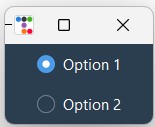 We used StringVar to store the user selection and used Pack layout manager.
Practical Overview
The ttkbootstrap Radiobutton widget enables single-option mutually exclusive choices within Python graphical user interfaces (GUIs). By binding multiple Radiobuttons to a shared state variable (StringVar or IntVar), selecting one button automatically deselects all others in the group. ttkbootstrap enhances standard Tkinter radiobuttons with predefined bootstyle color themes (e.g., primary, success, danger, outline, toolbutton) that blend seamlessly into desktop applications.
Prerequisites & Installation
Ensure you have Python 3.7 or higher installed along with the ttkbootstrap package:
pip install ttkbootstrap1. Radiobutton Bootstyle Colors & Types
ttkbootstrap offers multiple visual variants for radiobuttons through the bootstyle keyword argument:
| Bootstyle Constant | Visual Appearance | Primary Use Case |
|---|---|---|
PRIMARY, SECONDARY |
Default themed circular radiobutton. | Standard form input choices. |
SUCCESS, INFO, WARNING, DANGER |
Colored circular radiobutton highlights. | Status selections or priority levels. |
TOOLBUTTON |
Renders as a segmented push button. | Toolbar button groups or view toggles. |
OUTLINE-TOOLBUTTON |
Bordered button that fills when selected. | Mode selectors and filter tab bars. |
Using bootstyle=TOOLBUTTON bootstyle
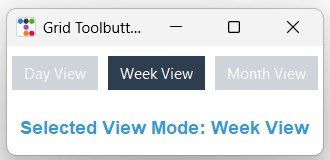 We used StringVar to store the user selection and used Grid layout manager.
Label label_msg is used display the user selection.
import ttkbootstrap as ttk
from ttkbootstrap.constants import *

def on_view_change():
    label_msg.config(text=f"Selected View Mode: {view_var.get()}")

root = ttk.Window(title="Grid Toolbutton Selection", themename="flatly")
view_var = ttk.StringVar(value="Day View")

# Toolbutton styled radiobutton group arranged in grid columns
rb1 = ttk.Radiobutton(root, text="Day View", variable=view_var, value="Day View", command=on_view_change, bootstyle="toolbutton")
rb2 = ttk.Radiobutton(root, text="Week View", variable=view_var, value="Week View", command=on_view_change, bootstyle="toolbutton")
rb3 = ttk.Radiobutton(root, text="Month View", variable=view_var, value="Month View", command=on_view_change, bootstyle="toolbutton")

rb1.grid(row=0, column=0, padx=5, pady=10, sticky="ew")
rb2.grid(row=0, column=1, padx=5, pady=10, sticky="ew")
rb3.grid(row=0, column=2, padx=5, pady=10, sticky="ew")

# Dynamic Message Label spanning across grid columns
label_msg = ttk.Label(root, text="Selected View Mode: Day View", font=("Helvetica", 11, "bold"), bootstyle=INFO)
label_msg.grid(row=1, column=0, columnspan=3, padx=5, pady=15)

root.mainloop()
Using bootstyle="outline-toolbutton"
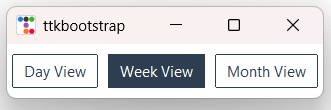 We used StringVar to store the user selection and used Grid layout manager.
Label label_msg is used display the user selection.
import ttkbootstrap as ttk
from ttkbootstrap.constants import *

root = ttk.Window(themename="flatly")
v = ttk.IntVar(value=1)

# Toolbutton styled radiobutton group arranged using grid layout
rb1 = ttk.Radiobutton(root, text="Day View", variable=v, value=1, bootstyle="outline-toolbutton")
rb2 = ttk.Radiobutton(root, text="Week View", variable=v, value=2, bootstyle="outline-toolbutton")
rb3 = ttk.Radiobutton(root, text="Month View", variable=v, value=3, bootstyle="outline-toolbutton")

rb1.grid(row=0, column=0, padx=5, pady=10)
rb2.grid(row=0, column=1, padx=5, pady=10)
rb3.grid(row=0, column=2, padx=5, pady=10)

root.mainloop()
2. Capturing Selection Events with Callbacks
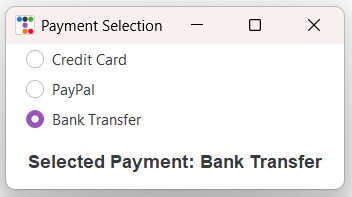 Attach a Python function to the
command parameter to trigger actions immediately when a user switches options:
import ttkbootstrap as ttk
from ttkbootstrap.constants import *

def on_payment_change():
    label_status.config(text=f"Selected Payment: {payment_method.get()}")

app = ttk.Window(title="Payment Selection", themename="cosmo")
payment_method = ttk.StringVar(value="Credit Card")

options = ["Credit Card", "PayPal", "Bank Transfer"]

for opt in options:
    rb = ttk.Radiobutton(
        app,
        text=opt,
        variable=payment_method,
        value=opt,
        command=on_payment_change,
        bootstyle=INFO
    )
    rb.pack(anchor=W, padx=20, pady=5)

label_status = ttk.Label(app, text="Selected Payment: Credit Card", font=("Helvetica", 11, "bold"))
label_status.pack(padx=20, pady=15)

app.mainloop()
3. Dynamic Runtime Theme Switcher
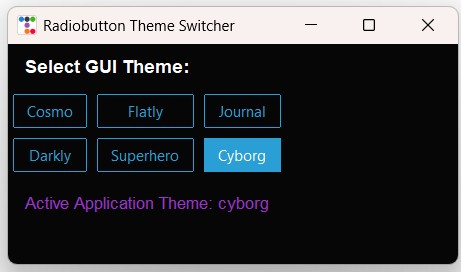 We used StringVar to track selected themes and used Grid layout manager.
Label label_msg displays the active application theme updated via app.style.theme_use().
import ttkbootstrap as ttk
from ttkbootstrap.constants import *

def on_theme_change():
    selected_theme = theme_var.get()
    app.style.theme_use(selected_theme)
    label_msg.config(text=f"Active Application Theme: {selected_theme}")

app = ttk.Window(title="Radiobutton Theme Switcher", themename="superhero")
app.geometry("450x220")

theme_var = ttk.StringVar(value="superhero")
themes = ["cosmo", "flatly", "journal", "darkly", "superhero", "cyborg"]

lbl_title = ttk.Label(app, text="Select GUI Theme:", font=("Helvetica", 11, "bold"))
lbl_title.grid(row=0, column=0, columnspan=3, padx=15, pady=10, sticky="w")

# Radiobutton theme selector arranged in 3 columns
for index, t_name in enumerate(themes):
    r_row = (index // 3) + 1
    r_col = index % 3
    rb = ttk.Radiobutton(
        app,
        text=t_name.capitalize(),
        value=t_name,
        variable=theme_var,
        command=on_theme_change,
        bootstyle="outline-toolbutton"
    )
    rb.grid(row=r_row, column=r_col, padx=5, pady=5, sticky="ew")

label_msg = ttk.Label(app, text="Active Application Theme: superhero", font=("Helvetica", 10), bootstyle=INFO)
label_msg.grid(row=3, column=0, columnspan=3, padx=15, pady=15)

app.mainloop()
Common Errors & Troubleshooting
| Issue / Error | Cause | Recommended Solution |
|---|---|---|
| All radiobuttons start pre-selected | The control variable is initialized to a value that matches multiple radiobuttons or empty string. | Explicitly set `variable.set(default_value)` to match one specific radiobutton `value`. |
| Selecting one button does not uncheck others | Each Radiobutton widget was assigned a separate `variable` instance instead of sharing a single instance. | Pass the exact same `StringVar` or `IntVar` object to the `variable` parameter of all radiobuttons in the group. |
| Variable garbage collected inside function | Creating `ttk.StringVar()` inside a local function without attaching it to a persistent reference causes garbage collection. | Store the variable as an instance attribute (`self.var`) or a global module reference. |
Frequently Asked Questions
radiobutton.config(state="disabled") or radiobutton.configure(state=DISABLED) to gray out the widget and disable user interaction.
ttk.IntVar() or ttk.DoubleVar() for integer or floating-point radiobutton values (e.g., value=1, value=2).
Further Reading & Related Tutorials: Checkbutton Widget, Custom Themes, and ttkbootstrap Overview.
Connecting Radiobuttons with SQLite & MySQL
Learn how to bind ttkbootstrap Radiobuttons to a database using SQLAlchemy. Discover how to fetch saved preference values on application launch, pre-select the active radiobutton, and automatically execute real-time SQL UPDATE queries whenever a user switches options.

Subhendu Mohapatra
Author & Instructor at plus2net
I write and maintain practical tutorials on Python, PHP, SQL, JavaScript, HTML, jQuery, and web development at plus2net. The tutorials focus on clear explanations, working examples, and code that readers can test and adapt while learning.


Subscribe to our YouTube Channel here

 Python Video Tutorials