Tkinter ttkbootstrap Scale & Slider Widget Tutorial
The ttkbootstrap Scale widget extends standard Tkinter sliders by providing theme-aware color palettes (`bootstyle`), smooth range selection, and real-time event tracking for numerical parameters.
Tutorial Breakdown:
- Part I: Basic Scale Slider & Bootstyle Colors (PRIMARY, SUCCESS, WARNING, DANGER)
- Part II: Live Dynamic Theme Switcher (Flatly, Superhero, Cosmo, Darkly)
- Part III: SQLite Database Integration (Saving Scale Value via SQLAlchemy)
- Part IV: Connecting to MySQL using SQLAlchemy
Part I: Basic Scale Slider & Bootstyle Colors
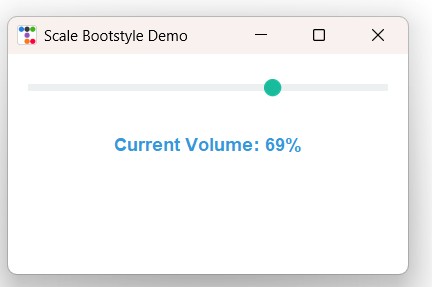 We used IntVar (or DoubleVar) to track slider values and used Pack layout manager.
Scale widget is enhanced with bootstyle=SUCCESS.
import ttkbootstrap as ttk
from ttkbootstrap.constants import *

def on_scale_move(value):
    label_val.config(text=f"Current Volume: {int(float(value))}%")

app = ttk.Window(title="Scale Bootstyle Demo", themename="flatly")
app.geometry("400x220")

scale_var = ttk.DoubleVar(value=50)

# Horizontal Scale with Success bootstyle
scale = ttk.Scale(
    app,
    from_=0,
    to=100,
    orient=HORIZONTAL,
    variable=scale_var,
    command=on_scale_move,
    bootstyle=SUCCESS
)
scale.pack(padx=20, pady=25, fill=X)

label_val = ttk.Label(app, text="Current Volume: 50%", font=("Helvetica", 11, "bold"), bootstyle=INFO)
label_val.pack(padx=20, pady=10)

app.mainloop()
Practical Overview
The ttkbootstrap Scale widget allows users to select continuous numerical values along a track. By utilizing bootstyle attributes (such as PRIMARY, SUCCESS, WARNING, or DANGER), the track highlight color dynamically synchronizes with your active application theme.
Part II: Live Dynamic Theme Switcher
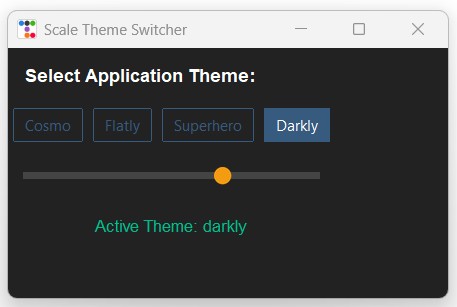 We used StringVar to track theme names and used Grid layout manager.
Selecting a theme radio button dynamically modifies app.style.theme_use() at runtime.
import ttkbootstrap as ttk
from ttkbootstrap.constants import *

def change_theme():
    selected_theme = theme_var.get()
    app.style.theme_use(selected_theme)
    label_info.config(text=f"Active Theme: {selected_theme}")

app = ttk.Window(title="Scale Theme Switcher", themename="superhero")
app.geometry("440x250")

theme_var = ttk.StringVar(value="superhero")
themes = ["cosmo", "flatly", "superhero", "darkly"]

lbl_title = ttk.Label(app, text="Select Application Theme:", font=("Helvetica", 11, "bold"))
lbl_title.grid(row=0, column=0, columnspan=4, padx=15, pady=15, sticky="w")

for idx, t_name in enumerate(themes):
    rb = ttk.Radiobutton(
        app,
        text=t_name.capitalize(),
        value=t_name,
        variable=theme_var,
        command=change_theme,
        bootstyle="outline-toolbutton"
    )
    rb.grid(row=1, column=idx, padx=5, pady=5)

scale_widget = ttk.Scale(app, from_=0, to=100, value=75, bootstyle=WARNING)
scale_widget.grid(row=2, column=0, columnspan=4, padx=15, pady=20, sticky="ew")

label_info = ttk.Label(app, text="Active Theme: superhero", bootstyle=SUCCESS, font=("Helvetica", 10))
label_info.grid(row=3, column=0, columnspan=4, padx=15, pady=10)

app.mainloop()
Part III: SQLite Database Integration (Saving Scale Value)
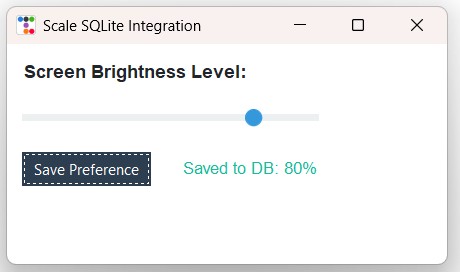 We used SQLite database and SQLAlchemy to persist the slider position.
On application startup, the Scale loads its initial position from the database. Changes can be saved via a button click, on next start the application will load the last user saved option.
1️⃣ Creating SQLite Table & Inserting Default Settings
from sqlalchemy import create_engine, text

# Use raw strings r"..." to prevent Unicode escape errors in Windows paths
DATABASE_URL = r"sqlite:///I:\My Drive\testing3\ttkbootstrap\user_preference.db"
engine = create_engine(DATABASE_URL, echo=False)

with engine.connect() as connection:
    connection.execute(text("CREATE TABLE IF NOT EXISTS settings (id INTEGER PRIMARY KEY, setting_name TEXT UNIQUE NOT NULL, setting_value TEXT NOT NULL)"))

    result = connection.execute(text("SELECT COUNT(*) FROM settings WHERE setting_name='brightness_level'"))
    if result.scalar() == 0:
        connection.execute(text("INSERT INTO settings (setting_name, setting_value) VALUES ('brightness_level', '65')"))
        connection.commit()

print("Database setup completed.")
2️⃣ Complete Application with Grid Layout & SQLite Sync
import ttkbootstrap as ttk
from ttkbootstrap.constants import *
from sqlalchemy import create_engine, text

DATABASE_URL = r"sqlite:///I:\My Drive\testing3\ttkbootstrap\user_preference.db"
engine = create_engine(DATABASE_URL, echo=False)
connection = engine.connect()

def get_stored_brightness():
    result = connection.execute(text("SELECT setting_value FROM settings WHERE setting_name='brightness_level'"))
    row = result.fetchone()
    return float(row[0]) if row else 50.0

def save_to_database():
    val = int(scale_var.get())
    connection.execute(text("UPDATE settings SET setting_value = :val WHERE setting_name='brightness_level'"),
                       {"val": str(val)})
    connection.commit()
    label_status.config(text=f"Saved to DB: {val}%")

root = ttk.Window(title="Scale SQLite Integration", themename="flatly")
root.geometry("440x220")

initial_val = get_stored_brightness()
scale_var = ttk.DoubleVar(value=initial_val)

lbl = ttk.Label(root, text="Screen Brightness Level:", font=("Helvetica", 11, "bold"))
lbl.grid(row=0, column=0, columnspan=2, padx=15, pady=15, sticky="w")

scale = ttk.Scale(
    root,
    from_=0,
    to=100,
    variable=scale_var,
    bootstyle=INFO
)
scale.grid(row=1, column=0, columnspan=2, padx=15, pady=10, sticky="ew")

btn_save = ttk.Button(root, text="Save Preference", command=save_to_database, bootstyle=PRIMARY)
btn_save.grid(row=2, column=0, padx=15, pady=15)

label_status = ttk.Label(root, text=f"Loaded from DB: {int(initial_val)}%", font=("Helvetica", 10), bootstyle=SUCCESS)
label_status.grid(row=2, column=1, padx=15, pady=15, sticky="w")

root.mainloop()
connection.close()
Part IV: Connecting to MySQL using SQLAlchemy
To transition seamlessly to a centralized MySQL database server, update the SQLAlchemy connection string. The rest of the GUI layout code remains unchanged:
# SQLite Connection (Commented Out)
# DATABASE_URL = r"sqlite:///I:\My Drive\testing3\ttkbootstrap\user_preference.db"

# MySQL Connection string using PyMySQL
DATABASE_URL = "mysql+pymysql://username:password@localhost/student_db"

engine = create_engine(DATABASE_URL, echo=False)
connection = engine.connect()
Common Errors & Troubleshooting
| Issue / Error | Cause | Recommended Solution |
|---|---|---|
| SyntaxError: (unicode error) | Windows file paths contain backslashes like path escape sequences. | Use raw strings r"sqlite:///..." or forward slashes "sqlite:///..." in connection strings. |
| Float value precision in database | Scale returns continuous float values (e.g., 55.678), which might be too granular for integer settings. |
Cast value using int(scale_var.get()) before saving to database records. |
Frequently Asked Questions
orient=VERTICAL when initializing the Scale widget (e.g., ttk.Scale(root, orient=VERTICAL, from_=100, to=0)).
val = round(float(v))).

Subhendu Mohapatra
Author & Instructor at plus2net
I write and maintain practical tutorials on Python, PHP, SQL, JavaScript, HTML, jQuery, and web development at plus2net. The tutorials focus on clear explanations, working examples, and code that readers can test and adapt while learning.


Subscribe to our YouTube Channel here

 Python Video Tutorials