Select Pandas DataFrame Columns using Tkinter Checkbuttons
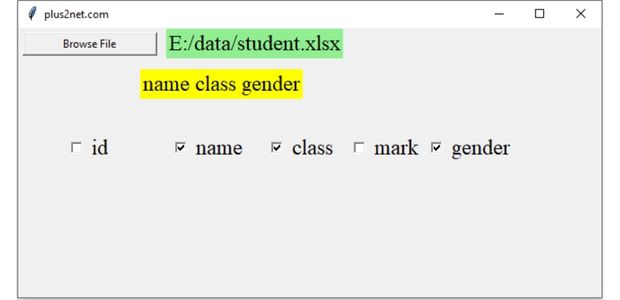
This project uses dynamic Tkinter Checkbuttons to let the user choose which columns of a Pandas DataFrame should be used or displayed.
The user first selects a CSV or Excel file. Pandas creates the DataFrame, one Checkbutton is created for each column, and the checked column names are collected into a Python list.
The revised version also uses that list to create a smaller DataFrame containing only the selected columns and displays the result in Treeview.
CSV / Excel
     |
     v
Pandas DataFrame
     |
     v
DataFrame columns
     |
     v
Tkinter Checkbuttons
     |
     v
Selected column list
     |
     v
df[selected_columns]
     |
     v
Treeview previewMain Functions in the Project Top ↑
The application is divided into a few clear tasks:
select_file(): select a CSV or Excel file and create the DataFrame.create_checkbuttons(): create one Checkbutton for each DataFrame column.update_selection(): collect the checked column names and create the selected DataFrame.configure_treeview(): create Treeview headings for the selected columns.refresh_treeview(): display the selected DataFrame rows.select_all(): check all available DataFrame columns.clear_all(): clear all selected columns.
Select a CSV or Excel File Top ↑
Use the Tkinter file browser to select CSV or Excel data.
file_path=filedialog.askopenfilename(
    title='Select CSV or Excel file',
    filetypes=[
        ('CSV files','*.csv'),
        ('Excel files','*.xlsx *.xls'),
        ('All files','*.*')
    ]
)
The file extension determines whether Pandas read_csv() or read_excel() is used.
extension=os.path.splitext(
    file_path
)[1].lower()

if extension=='.csv':
    df=pd.read_csv(file_path)
elif extension in ('.xlsx','.xls'):
    df=pd.read_excel(file_path)
If the file dialog is cancelled or the file cannot be read, the application displays a status message instead of continuing with an invalid DataFrame.
Create Dynamic Checkbuttons for DataFrame Columns Top ↑
After the DataFrame is loaded, its column names are available through:
list(df.columns)A dictionary stores one BooleanVar for each column:
column_vars={}

for column_name in df.columns:
    column_vars[column_name]=tk.BooleanVar(
        value=False
    )
The BooleanVar is connected to a Checkbutton:
check=ttk.Checkbutton(
    columns_frame,
    text=str(column_name),
    variable=column_vars[column_name],
    command=update_selection
)
Whenever a Checkbutton changes, update_selection() runs.
Remove Previous Checkbuttons
If another file is selected, the previous file may contain completely different columns. All old Checkbuttons are removed first:
for widget in columns_frame.winfo_children():
    widget.destroy()
Using a dedicated frame is cleaner than searching for widgets by a specific grid row.
Create a List of Selected Columns Top ↑
The checked columns can be collected with a list comprehension:
selected_columns=[
    column_name
    for column_name in df.columns
    if column_vars[column_name].get()
]
Iterating through df.columns preserves the original DataFrame column order.
For a DataFrame containing:
id
name
class
mark
gender
if the user selects:
name
mark
gender
the resulting Python list is:
[
    'name',
    'mark',
    'gender'
]
The selected names are also shown in a Tkinter Label.
Create a DataFrame with Selected Columns Top ↑
The selected list can be passed directly to the source DataFrame:
selected_df=df[
    selected_columns
].copy()
If the source DataFrame has:
id | name | class | mark | genderand the user selects:
name
mark
then selected_df contains only:
name | markThis is the practical purpose of collecting the selected column list. It can later be used for filtering, exporting, plotting or database operations.
Preview Selected Columns in Treeview Top ↑
The Treeview is created once. Its column structure changes whenever the Checkbutton selection changes.
Safe internal Treeview column IDs are generated:
column_ids=[
    f'c{i}'
    for i in range(
        len(selected_columns)
    )
]
The original DataFrame column names remain visible as headings.
for column_id,column_name in zip(
    column_ids,
    selected_columns
):
    tree.heading(
        column_id,
        text=str(column_name)
    )
Rows are then added from the selected DataFrame:
for row in selected_df.itertuples(
    index=False,
    name=None
):
    tree.insert(
        '',
        tk.END,
        values=row
    )
Select All and Clear All Columns Top ↑
For DataFrames with several columns, selecting every Checkbutton individually is unnecessary.
Select All sets every BooleanVar to True:
for variable in column_vars.values():
    variable.set(
        True
    )

update_selection()
Clear All performs the opposite:
for variable in column_vars.values():
    variable.set(
        False
    )

update_selection()
The Treeview preview is cleared when no columns are selected.
Complete Tkinter Column Selection Program Top ↑
Video: Select DataFrame Columns using Checkbuttons Top ↑
Why Use a Dictionary of BooleanVar Objects? Top ↑
Each column needs its own Tkinter variable:
column_vars[
    column_name
]=tk.BooleanVar()
The dictionary connects:
column name
     |
     v
BooleanVar
     |
     v
Checkbutton state
For example:
{
    'id': BooleanVar,
    'name': BooleanVar,
    'class': BooleanVar,
    'mark': BooleanVar
}
This makes it easy to identify which DataFrame columns are selected.
Why Not Use grid_slaves() to Find Old Checkbuttons? Top ↑
The original program used:
my_w.grid_slaves(3)This depends on the dynamic widgets always being placed in a specific grid row.
The revised version places all dynamic Checkbuttons inside one dedicated frame:
columns_frameRemoving them is then straightforward:
for widget in columns_frame.winfo_children():
    widget.destroy()
Using the Selected Column List elsewhere Top ↑
The important output of this project is the Python list:
selected_columnsIt can be used for many DataFrame operations.
Select Columns
df2=df[
    selected_columns
]
Save Only Selected Columns
df[
    selected_columns
].to_csv(
    'output.csv',
    index=False
)
Search Only Selected Columns
The list can also be integrated with our DataFrame search project so user searches are limited to the checked columns.
Display Only Selected Columns
The complete program on this page demonstrates this directly by rebuilding the Treeview view from:
selected_df=df[
    selected_columns
].copy()
Continue the Tkinter Pandas Project Top ↑
Combine column selection with DataFrame searching:
Search and Filter a DataFrameSelect and delete a matching Treeview row:
Select and Delete DataFrame RowsUse the same DataFrame concepts with analytics CSV files:
Read Analytics CSV Data with TkinterOr apply DataFrame column sorting to directory information:
Directory Browser with Treeview SortingFrequently Asked Questions Top ↑
Loop through df.columns, create one BooleanVar for each column and connect that variable to a dynamically created Checkbutton.
Loop through the original DataFrame columns and include each column whose associated BooleanVar returns True.
Pass the selected column list to the DataFrame as df[selected_columns].
Using df.columns while collecting checked values ensures selected columns remain in the same order as the source data.
The previous Checkbuttons are destroyed, the DataFrame is replaced, and a new set of Checkbuttons is generated from the new file's columns.
Yes. The selected column list can create a smaller DataFrame, and its headings and rows can be displayed dynamically in Treeview.
Yes. Use the selected list with the DataFrame and then call methods such as to_csv() or other Pandas output methods.
DataFrame Search Select and Delete Rows Analytics CSV Project
Tkinter Projects Tkinter Pandas Projects

Subhendu Mohapatra
Author & Instructor at plus2net
I write and maintain practical tutorials on Python, PHP, SQL, JavaScript, HTML, jQuery, and web development at plus2net. The tutorials focus on clear explanations, working examples, and code that readers can test and adapt while learning.


Subscribe to our YouTube Channel here

 Python Video Tutorials