Persistent User Settings in ttkbootstrap
- Part I: Using Json file to store Theme settings.
- Part II: Using a Database to Store Theme Settings Instead of JSON.
Building a professional desktop application involves more than just a great UI; it requires user state management. If a user switches your application to "Darkly" mode, they expect that choice to remain active the next time they launch the program.
Step 1: The JSON Configuration File 🔝
We will use a standard JSON file (settings.json) to store our configuration.
Unlike a text file, JSON allows us to store structured data like theme names, font sizes,
or even window dimensions in a way that Python can read as a dictionary.
Step 2: Core Persistence Functions
We need two primary functions: one to load the settings at startup and one to save the settings whenever the user toggles the theme button.
Step 3: Integrating with the Application Loop
The critical step for "Topical Authority" is where you place the loading logic.
To avoid a "flash" of the wrong theme, we load the JSON data before
the main ttk.Window is initialized.
os.path.exists() to check if the
settings file is present. If it is missing (like on a first-time launch), your
code should provide a default theme to prevent crashes.Checking file path
import ttkbootstrap as ttk
from ttkbootstrap.constants import *
import json, os

# --- Configuration Management ---
CONFIG_FILE = "settings.json"

def load_settings():
    # Load the theme from file or use 'flatly' as default
    if os.path.exists(CONFIG_FILE):
        with open(CONFIG_FILE, "r") as f:
            data = json.load(f)
            return data.get("theme", "flatly")
    return "flatly"

def save_settings(theme_name):
    # Save the current theme name to a JSON file
    with open(CONFIG_FILE, "w") as f:
        json.dump({"theme": theme_name}, f)

def on_toggle_switch():
    # Update theme and save the preference
    selected_theme = "darkly" if var.get() == 1 else "flatly"
    style.theme_use(selected_theme)
    save_settings(selected_theme)

# --- Application Startup ---
saved_theme = load_settings()
root = ttk.Window(themename=saved_theme)
root.title("plus2net Theme Persistence")
root.geometry("500x500") # Size of the window
style = ttk.Style()
start_state = 1 if saved_theme == "darkly" else 0
var = ttk.IntVar(value=start_state)

toggle = ttk.Checkbutton(
    root, text="Dark Mode",
    variable=var,
    command=on_toggle_switch,
    bootstyle="round-toggle"
)
toggle.pack(pady=30, padx=30)

root.mainloop()Sample settings.json File
To ensure your application runs correctly the first time, you can manually create a file named settings.json in the same folder as your Python script.
Below is the standard format for this file. You can change the value from "flatly" to "darkly" to test the initial loading logic.
{
    "theme": "flatly",
    "version": 1.0,
    "last_updated": "2025-12-28"
}
Extending to Window Geometry
Beyond themes, you can use this same logic to store the window's last known position and size.
By saving root.winfo_geometry(), your application will always reopen exactly where
the user left it.
import ttkbootstrap as ttk
from ttkbootstrap.constants import *
import json, os

CONFIG_FILE = "settings.json" # Update the file path here

def load_settings():
    try:
        if os.path.exists(CONFIG_FILE):
            with open(CONFIG_FILE, "r") as f:
                return json.load(f)
    except:
        pass
    return {} # Return empty dict if file missing or corrupt

def save_all_settings():
    data = {
        "theme": style.theme.name,
        "size": root.geometry()
    }
    with open(CONFIG_FILE, "w") as f:
        json.dump(data, f)

# --- Startup Logic with Fallbacks ---
config = load_settings()

# Use .get() to provide defaults if keys are missing
saved_theme = config.get("theme", "flatly")
saved_size = config.get("size", "500x400")

root = ttk.Window(themename=saved_theme)
root.geometry(saved_size)
root.title("plus2net Advanced Persistence")

style = ttk.Style()
var = ttk.IntVar(value=1 if saved_theme == "darkly" else 0)

def on_change():
    style.theme_use("darkly" if var.get() == 1 else "flatly")
    save_all_settings()

toggle = ttk.Checkbutton(root, text="Dark Mode", variable=var, command=on_change, bootstyle="round-toggle")
toggle.pack(pady=50)

root.protocol("WM_DELETE_WINDOW", lambda: [save_all_settings(), root.destroy()])
root.mainloop()
Quick Guide: Understanding settings.json
To help you customize or troubleshoot your configuration file, here is a breakdown of the keys used in the settings.json file:
-
theme:
This stores the name of the
ttkbootstraptheme currently in use (e.g., "flatly", "darkly", or "cosmo"). -
size:
This is the Tkinter geometry string. It follows the format:
Width x Height + X_offset + Y_offset. For example, "485x245+128+128" means the window is 485 pixels wide, 245 pixels high, and positioned 128 pixels from the top-left of your screen.
{
    "theme": "darkly",
    "size": "485x245+128+128"
}
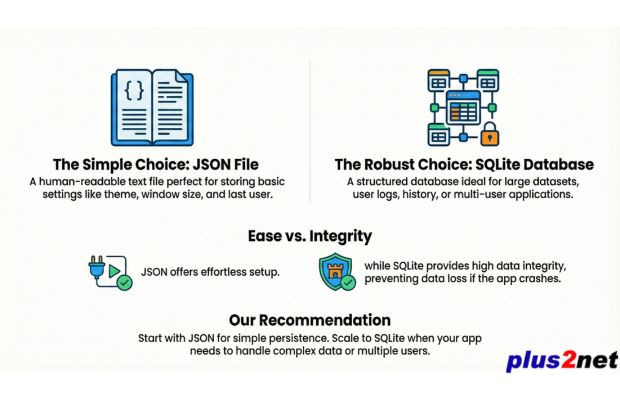
Choosing the Right Storage: JSON vs. SQLite
When deciding how to save your application's state and user preferences, consider the complexity of your project. Here is a breakdown of how these two methods compare:
| Feature | JSON File | SQLite Database |
|---|---|---|
| Setup Ease | Very Easy - No setup required, just a text file. | Moderate - Requires table creation and SQL queries. |
| Readability | Human Readable - Can be opened and edited in Notepad. | Binary - Requires a database viewer or Python to read. |
| Data Volume | Best for small configurations (Theme, Size, Last User). | Best for large datasets (User logs, Inventory, History). |
| Data Integrity | Lower - Risks corruption if the app crashes during a write. | High - Uses transactions (ACID) to prevent data loss. |
| Scalability | Hard to manage if you have hundreds of settings. | Designed to handle thousands of rows and complex relationships. |
Using a Database to Store Theme Settings Instead of JSON 🔝

While JSON files are commonly used to store UI theme settings, using a database like SQLite or MySQL provides more flexibility and scalability. A database allows dynamic updates, centralized storage, and multi-user access without modifying static files. By fetching theme settings directly from a database, we can easily switch themes, customize UI elements, and even allow users to personalize their application interface in real time. 🚀
Creating the Theme Settings Database
The first script initializes the database by creating a table to store theme settings and inserting sample data. Using SQLAlchemy, we execute raw SQL queries to ensure compatibility across different databases. By simply uncommenting the MySQL connection line, the same script can be used to store theme settings in a MySQL database instead of SQLite, making it easier to scale and manage across multiple environments. 🔄import os
from sqlalchemy import create_engine, text
# 🔹 Define Database Path (Same Directory)
BASE_DIR = os.path.dirname(os.path.abspath(__file__))
DB_PATH = os.path.join(BASE_DIR, "theme.db")
# 🔹 Create Database Engine
engine = create_engine(f"sqlite:///{DB_PATH}")
# engine = create_engine("mysql+pymysql://username:password@localhost/theme_db") # MySQL Connection
# 🔹 Create Themes Table
with engine.connect() as conn:
conn.execute(text("""
CREATE TABLE IF NOT EXISTS themes (
name TEXT PRIMARY KEY,
primary_color TEXT,
secondary_color TEXT,
font_family TEXT,
font_size INTEGER
)
"""))
conn.commit()
# 🔹 Sample Theme Data (Multiple Themes)
themes = [
("dark_theme", "#343A40", "#6C757D", "Arial", 12),
("light_theme", "#F8F9FA", "#E9ECEF", "Calibri", 11),
("custom_theme", "#007BFF", "#6C757D", "Helvetica", 10)
]
# 🔹 Insert Theme Data (Avoid Duplicate Entries)
with engine.connect() as conn:
for theme in themes:
conn.execute(text("DELETE FROM themes WHERE name = :name"), {"name": theme[0]})
conn.execute(text("INSERT INTO themes VALUES (:name, :primary, :secondary, :font, :size)"),
{"name": theme[0], "primary": theme[1], "secondary": theme[2], "font": theme[3], "size": theme[4]})
conn.commit()
print("✅ Themes inserted successfully!")import os
from sqlalchemy import create_engine, text
import ttkbootstrap as ttk
from ttkbootstrap.constants import *
# 🔹 Define Database Path (Same Directory)
BASE_DIR = os.path.dirname(os.path.abspath(__file__))
DB_PATH = os.path.join(BASE_DIR, "theme.db")
# 🔹 Create Database Engine
engine = create_engine(f"sqlite:///{DB_PATH}") # SQLite Connection
# engine = create_engine("mysql+pymysql://username:password@localhost/theme_db") # MySQL Connection
# 🔹 Fetch Theme Data (Select Theme Name Here)
theme_name = "custom_theme" # Change to "dark_theme" or "light_theme"
with engine.connect() as conn:
result = conn.execute(text("SELECT * FROM themes WHERE name = :name"), {"name": theme_name}).fetchone()
# 🔹 If Theme Exists, Apply It
if result:
theme_name, primary_color, secondary_color, font_family, font_size = result
# 🔹 Create Main Window
my_w = ttk.Window()
my_w.geometry("400x200")
my_w.title("www.plus2net.com : SQLite Theme Example")
# 🔹 Apply Custom Theme
style = ttk.Style()
style.configure("TButton", font=(font_family, font_size), background=primary_color)
style.configure("TLabel", font=(font_family, font_size), background=secondary_color)
# 🔹 Create Label
label = ttk.Label(my_w, text="Hello, Custom Theme!", bootstyle="info")
label.pack(pady=20)
# 🔹 Create Button
button = ttk.Button(my_w, text="Click Me", bootstyle="primary",
command=lambda: label.config(text="Button Clicked!"))
button.pack()
my_w.mainloop()
else:
print("❌ No theme data found in database.")Conclusion: Choosing Your Persistence Strategy
Building a professional Python application requires more than just a great UI; it requires a seamless user experience. By implementing the persistence techniques covered in this guide, you ensure that your users don't have to re-configure their preferences every time they launch your app.
The JSON Approach
Best for lightweight tools and single-user applications. It is easy to debug, human-readable, and requires zero external libraries.
The SQLite Approach
Best for data-heavy applications, multi-user environments, or projects where data integrity and security are top priorities.
Whichever method you choose, the key is consistency. Always use the .get() method when loading settings to prevent your application from crashing if a configuration file is missing or corrupted.
What's Next?
Now that your application can remember its state, it's time to display data effectively. In our next tutorial, we will explore the Tableview widget—a powerful, spreadsheet-like component that supports sorting, filtering, and pagination natively in ttkbootstrap.
Advance to Tableview Tutorial →
Subhendu Mohapatra
Author & Instructor at plus2net
I write and maintain practical tutorials on Python, PHP, SQL, JavaScript, HTML, jQuery, and web development at plus2net. The tutorials focus on clear explanations, working examples, and code that readers can test and adapt while learning.


Subscribe to our YouTube Channel here

 Python Video Tutorials